Page 1: Cover
BSMA FIELD GUIDE
THE PRACTICAL MANUAL
VIDEO EDITING MADE CLEAR
A beginner’s guide to short-form video editing with Edits by Instagram
Build it with four simple edits.
Bring the story to life.
Give it a creative edge.
FOR BEGINNERS. FOR YOUR NEXT REAL EDIT.
BSMA / VIDEO EDITING FIELD GUIDE
Page 2: Four edits

START HERE
FOUR EDITS.
Cut, split, delete and reorder. Learn these four
and you can make a great video. Everything else
is optional.
1. Build
Four basic edits turn your clips into a clear
story. That alone makes a finished video.
2. Tell the story
Pace, B-roll, text, captions and music help
people see what you mean and keep watching.
Use what helps your message.
3. Add a creative edge
Six optional tools for extra polish. Pick one,
try it, and keep it only if it helps.
How each page works
Read the steps. Watch the demo. Then make one
change to your own footage and play it back.
Edits updates often. If a button looks different,
check you have tapped the right clip first.
Checked on Edits version __ on [device], Oct 2026.
DESIGN REVIEW COPY / VIDEO LINKS PENDING
BSMA / VIDEO EDITING FIELD GUIDE
Page 3: Your route through the guide

START HERE
YOUR ROUTE THROUGH THE GUIDE
THREE STAGES. ONE GREAT VIDEO.
Work through the guide in order. Stage 1 is all you need to finish a video. Stages 2 and 3 make it even better.
01 PLAN
One video, one message. Page 04
02 GET STARTED
Open the app. Learn the timeline. Pages 05 and 06
03 1. BUILD
Cut, split, delete, reorder. Pages 07 to 12
04 2. TELL THE STORY
Pace, B-roll, text, captions, music. Pages 13 to 18
05 3. CREATIVE EDGE
Six optional tools. Pick what helps. Pages 19 to 26
06 FINISH
Export, final check and help pages. Pages 27 to 31
Short on time? Pages 05, 09 to 12 and 27 get your first video posted today. Anyone talking? Add captions too (page 17).
Page 4: One video, one message

START HERE
PLAN BEFORE YOU OPEN EDITS
ONE VIDEO, ONE MESSAGE.
Answer five questions before you edit and every choice gets easier. The examples come from the project used in every demo.
01 VIEWER
Who is it for? Example: hungry people working nearby.
02 MESSAGE
What one thing should they remember? Example: fresh food, ready in minutes.
03 HOOK
What grabs them in the first second? Example: flames and sizzle in the wok.
04 PROOF
What shows it is true? Example: close-ups of the cooking.
05 NEXT STEP
What should they do next? Example: visit before 2pm.
06 YOUR BRIEF
This video shows [who] [one thing] so they [next step].
BSMA rule: edit towards one takeaway, not a collection of clips.
FILM FOR THE EDIT
Hold every shot for 5 seconds. Film the main action from 3 angles. Leave 2 seconds of quiet before and after you speak. Spare footage makes every edit easier.
Page 5: Open the app, add your clips

GET STARTED
BEFORE YOUR FIRST EDIT
OPEN THE APP. ADD YOUR CLIPS.
Edits is free on the App Store and Google Play. You log in with your Instagram account, so have your details ready.
HOW TO DO IT
01 Download Edits and log in with Instagram.
02 Tap + to start a new project.
03 Choose only the clips that support your message.
04 Add them. They appear in order on your timeline.
BSMA RULE
Start with useful footage, not every file you filmed.
COMMON MISTAKE
Deleting the original clips from your phone before the video is finished.
TAP + > GALLERY > PICK CLIPS > TICK
CHECK IT WORKED
Your clips sit in a row along the bottom, with a preview above. Edits keeps your project as a draft, so you can come back to it later. You can also film straight into the Edits camera.
Page 6: The timeline

GET STARTED
TIMELINE ANATOMY
THE TIMELINE.
Before you touch a feature, learn how the timeline behaves. This is the map for every edit you make.
01 THE PLAYHEAD
The white line in the middle. Scroll to move it. Whatever it sits on is what you see.
02 LAYERS
Video, text, audio and captions each have their own row. Move one without moving the others.
03 PINCH TO ZOOM
Pinch out to zoom in for precise cuts. Pinch in to see the whole video.
04 SELECTING A CLIP
Tap a clip to select it. A yellow border appears and its tools show. Tap away to go back.
BSMA RULE
COMMON MISTAKE
Check what is selected before you tap a tool.
Changing one clip when you meant to change another.
CHECK IT WORKED
Tap a clip and the toolbar changes to show its tools. Tap away to go back. Made a mistake? Tap the undo arrow straight away.
Page 7: The basics

1. BUILD
YOUR MAP FOR EVERY EDIT
THE BASICS
Master four essential edits to turn your footage into a clear first cut.
Page 8: Four simple edits

1. BUILD
THE ONLY EDITS YOU NEED
FOUR SIMPLE EDITS. ONE GREAT VIDEO.
Learn these four, in this order, and you can make a great video. Everything after this section is optional.
01 CUT
Trim the start and end of a clip. Page 09
02 SPLIT
Divide one clip into two pieces. Page 10
03 DELETE
Remove the parts you don’t need. Page 11
04 REORDER
Put your clips in story order. Page 12
That's a finished video. Talking to camera? Add captions too (page 17).
Want it to flow better? Pace is on page 14.
Page 9: Cut the ends
1. BUILD
EDIT 1 OF 4
CUT THE ENDS.
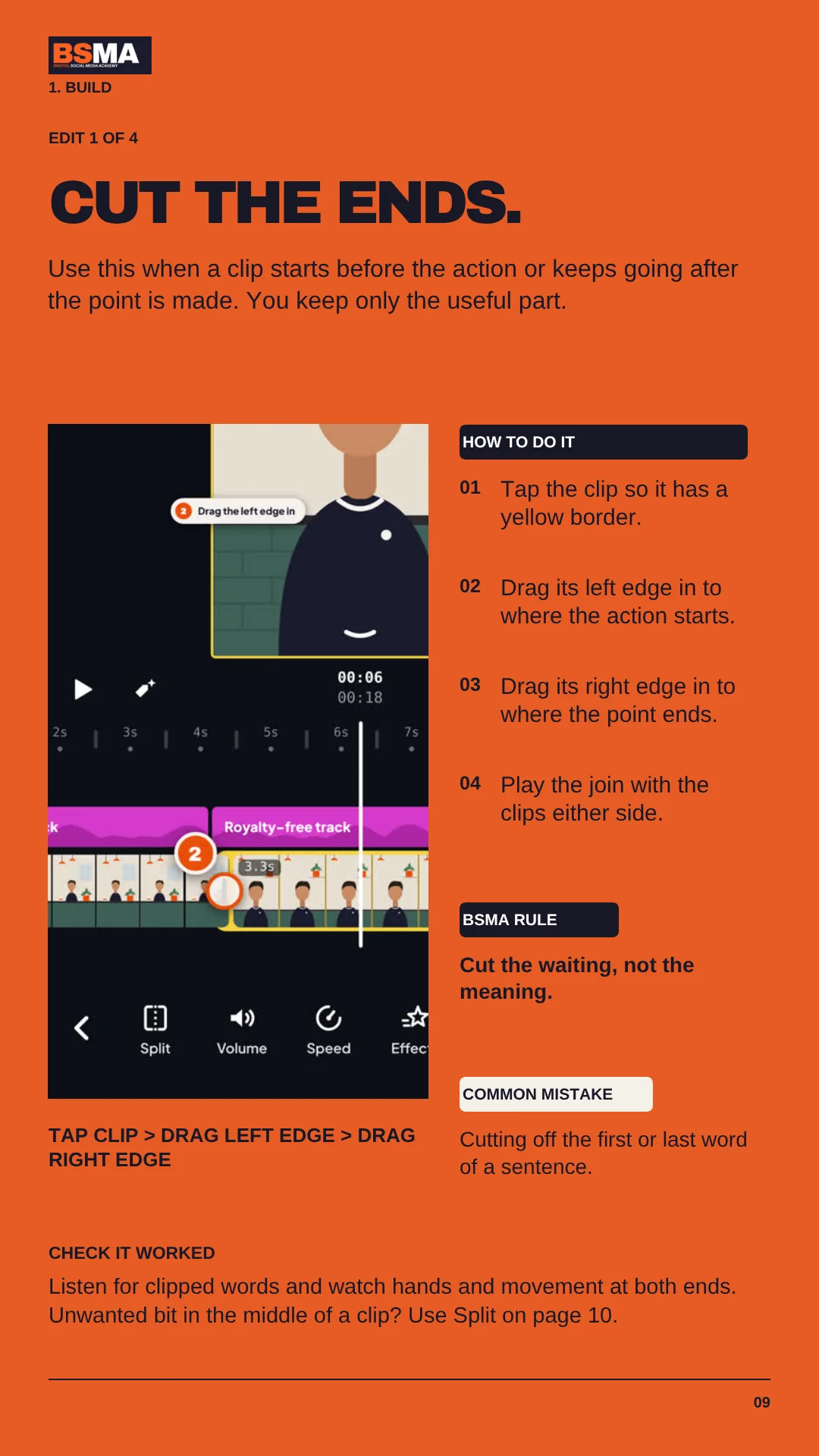
Use this when a clip starts before the action or keeps going after the point is made. You keep only the useful part.
HOW TO DO IT
01 Tap the clip so it has a yellow border.
02 Drag its left edge in to where the action starts.
03 Drag its right edge in to where the point ends.
04 Play the join with the clips either side.
BSMA RULE
Cut the waiting, not the meaning.
COMMON MISTAKE
Cutting off the first or last word of a sentence.
TAP CLIP > DRAG LEFT EDGE > DRAG RIGHT EDGE
CHECK IT WORKED
Listen for clipped words and watch hands and movement at both ends. Unwanted bit in the middle of a clip? Use Split on page 10.
Page 10: Split a clip

1. BUILD
EDIT 2 OF 4
SPLIT A CLIP.
Use this when you need to change something in the middle of a clip. A split cuts one clip into two separate pieces.
HOW TO DO IT
01 Scroll so the playhead sits exactly where you want the cut.
02 Tap the clip to select it.
03 Tap Split in the toolbar.
04 You now have two clips to trim, delete or move.
BSMA RULE
For dialogue edits, split at a pause, never mid-word.
COMMON MISTAKE
Splitting the wrong clip because another one was still selected.
MOVE PLAYHEAD > TAP CLIP > SPLIT
CHECK IT WORKED
You will see a new edit point at the playhead. To remove a section from the middle, split at its start and end, then delete it (page 11).
Page 11: Delete a section

1. BUILD
EDIT 3 OF 4
DELETE A SECTION.
Use this to remove a mistake, a repeated sentence or a long pause. Split first (page 10), then delete the piece you don’t want.
HOW TO DO IT
01 Split at the start and end of the bit you don’t want.
02 Tap only that middle piece to select it.
03 Tap Delete in the toolbar.
04 Play from just before the join to check it.
BSMA RULE
Check the selection, then delete.
COMMON MISTAKE
Deleting the piece you meant to keep. If you do, tap undo straight away.
SPLIT TWICE > TAP MIDDLE PIECE > DELETE
CHECK IT WORKED
The sentence still makes sense and the voice flows across the join. If a gap is left, drag the next clip across to close it.
Page 12: Reorder your clips

1. BUILD
EDIT 4 OF 4
REORDER YOUR CLIPS.
Use this to put your story in the right order. Lead with your strongest moment, then let each clip lead to the next.
HOW TO DO IT
01 Press and hold the clip you want to move.
02 Drag it left or right to its new place.
03 Let go when it sits where you want it.
04 Play the whole video from the start.
BSMA RULE
Open with your strongest moment.
COMMON MISTAKE
Saving the best shot for the end, after viewers have scrolled away.
PRESS AND HOLD CLIP > DRAG > LET GO
CHECK IT WORKED
Watch it through once without stopping. Does each clip lead to the next? If not, move one clip and watch again. That’s your video built.
Page 13: Bring the story to life

2. TELL THE STORY
STORY TOOLS
BRING THE STORY TO LIFE
Use pacing, B-roll, text, captions and music to make your message easier to follow.
Page 14: Pace controls the feeling

2. TELL THE STORY
THE STORY DECIDES THE PACE
PACE CONTROLS THE FEELING.
Clip length, music, sound effects and voiceover all shape how a video feels. Decide the feeling first, then cut to it.
0.5 TO 1.5 SEC CLIPS
USE FOR
product reveals event recaps food montages quick tips high-energy brand content
3 TO 5 SEC CLIPS
USE FOR
cinematic food shots premium product content emotional moments voiceover-led stories thoughtful messages
FAST PACE
Short clips build momentum. Quick cuts, sound effects and transitions make a video feel energetic, urgent and punchy.
BEST PRACTICE
If the edit is fast, keep the message simple. Viewers need the point quickly.
SLOW PACE
Longer clips give viewers time to feel the moment. Slow motion, natural sound and fewer transitions build atmosphere.
BEST PRACTICE
If the edit is slow, make every shot earn its time on screen and match the voiceover.
VOICEOVER MUST MATCH THE PACE.
Fast edit: short, direct sentences. Slow edit: space, pauses and detail. If the voiceover is calm, don't cut it like a hype reel.
BSMA RULE
The pace of the edit should match the feeling of the story.
Page 15: Add B-roll

2. TELL THE STORY
STORY TOOL 1 OF 4
ADD B-ROLL.
B-roll is extra footage that shows what the speaker is talking about. Their voice keeps playing underneath.
HOW TO DO IT
01 Move the playhead to the words you want to show.
02 Scroll to Overlay and add your B-roll from Gallery.
03 Resize it to fill the frame. Trim it to fit the words.
04 Mute the B-roll so only the speaker is heard.
BSMA RULE
Let the words guide the picture.
COMMON MISTAKE
Using pretty footage that has nothing to do with what is being said.
TAP AWAY > OVERLAY > GALLERY > MUTE
CHECK IT WORKED
The voice carries on without a break and the picture shows what is being said. B-roll can hide a visible jump cut; return to the speaker when their face matters.
Page 16: Add text

2. TELL THE STORY
STORY TOOL 2 OF 4
ADD TEXT.
On-screen text adds what the picture can’t say: a hook, a label, a key point or what to do next.
HOW TO DO IT
01 Tap Text and type the shortest useful message.
02 Pick a style you can read easily on a phone.
03 Drag the ends of the text layer to set when it shows.
04 Keep it clear of faces and the app’s buttons.
BSMA RULE
Say less on screen, and give it room.
COMMON MISTAKE
Putting a whole paragraph on screen.
TAP AWAY > TEXT > TYPE > PICK STYLE
CHECK IT WORKED
Watch without pausing. Can you read every line in time and still follow the picture? Text near the bottom or right edge can hide behind Instagram’s buttons.
Page 17: Add captions

2. TELL THE STORY
STORY TOOL 3 OF 4
ADD CAPTIONS.
Captions turn speech into words on screen. Lots of people watch with the sound off, so most talking videos need them.
HOW TO DO IT
01 Finish your cuts first, then tap Captions.
02 Let Edits create them, then read every word.
03 Fix names, numbers and misheard words.
04 Pick a clear style. Keep them above the app’s buttons.
BSMA RULE
Readability comes before animation.
COMMON MISTAKE
Trusting the automatic captions without checking them.
TAP AWAY > CAPTIONS > CHECK EVERY WORD
CHECK IT WORKED
Watch the whole video with the sound off. Can you follow every word? If you change a cut later, check the captions again.
Page 18: Add music

2. TELL THE STORY
STORY TOOL 4 OF 4
ADD MUSIC.
Music sets the mood and the pace. You can add more than one track to shift the feeling as the story moves on.
HOW TO DO IT
01 Tap Audio and choose a track that fits the feeling.
02 Trim it to start and end at the right moments.
03 Turn it down until every word is clear.
04 Add a second track if the mood changes.
BSMA RULE
The viewer should never strain to hear the voice.
COMMON MISTAKE
Using a track you don’t have permission to use for business.
TAP AWAY > AUDIO > PICK TRACK > VOLUME
CHECK IT WORKED
Listen once on headphones and once on the phone speaker. Can you hear every word? Using it in an ad? Check the track is cleared for business use.
Page 19: Get creative

3. CREATIVE EDGE
OPTIONAL TOOLS
GET CREATIVE
Optional tools for emphasis, energy and polish. Use them only when they help the story.
Page 20: Add a creative edge

3. CREATIVE EDGE
OPTIONAL. PICK ONE WHEN IT HELPS.
ADD A CREATIVE EDGE.
Your video already works. These six tools add polish. Pick one, try it, and keep it only if the video is clearer.
01 CUT IN
Jump closer to the speaker for emphasis. Page 21
02 SPEED
Speed up or slow down a moment. Page 22
03 TRANSITION
Change how one shot becomes the next. Page 23
04 COLOUR
Make clips look natural and consistent. Page 24
05 VOICEOVER
Record narration over your clips. Page 25
06 SOUND EFFECT
Add impact to a visible action. Page 26
You don’t need to use every feature. You need a clear video.
Page 21: Cut in for emphasis

3. CREATIVE EDGE
CREATIVE TOOL 1 OF 6
CUT IN FOR EMPHASIS.
A cut-in jumps closer to the speaker or subject on a key line. It adds energy from one camera angle and can hide a cut.
HOW TO DO IT
01 Split the talking head at the start of a key line.
02 Tap the second piece to select it.
03 Pinch the preview to zoom in a little.
04 Keep the eyes at the same height across the cut.
BSMA RULE
Change the framing when the emphasis changes.
COMMON MISTAKE
Zooming in every few seconds, whatever the speaker is saying.
SPLIT > TAP SECOND PIECE > PINCH PREVIEW
CHECK IT WORKED
The jump should feel deliberate. Too small looks like a mistake. Too big looks blurry. Go back to the wider shot when the idea changes.
Page 22: Change speed

3. CREATIVE EDGE
CREATIVE TOOL 2 OF 6
CHANGE SPEED.
Speed up a slow, repeated action or slow down a moment worth seeing. It works best on shots without speech.
HOW TO DO IT
01 Tap a clip of movement, not someone talking.
02 Tap Speed in the toolbar.
03 Drag faster or slower, then play it back.
04 Mute the clip’s sound if it now sounds odd.
BSMA RULE
Change time to help understanding or energy.
COMMON MISTAKE
Speeding up speech, or slowing footage until it stutters.
TAP CLIP > SPEED > DRAG SLIDER
CHECK IT WORKED
Slow motion looks smoother if you filmed at 60 fps. Changing speed changes a clip’s length, so check your text, captions and music still line up.
Page 23: Add a transition

3. CREATIVE EDGE
CREATIVE TOOL 3 OF 6
ADD A TRANSITION.
A transition changes how one shot becomes the next. A straight cut is already a transition, and often the best one.
HOW TO DO IT
01 Play the join as a straight cut first.
02 Tap the small box between two clips.
03 Try a simple dissolve before anything flashier.
04 Keep it short and play across the join.
BSMA RULE
Use a transition because the story changes.
COMMON MISTAKE
Putting a different effect on every cut.
TAP BOX BETWEEN CLIPS > DISSOLVE
CHECK IT WORKED
The shots connect without pulling attention from the message. Use transitions to show a change of time, place or mood, not to hide a weak edit.
Page 24: Adjust the colour

3. CREATIVE EDGE
CREATIVE TOOL 4 OF 6
ADJUST THE COLOUR.
Use Adjust when a clip looks too dark, too warm or washed out, so every shot looks like it belongs together.
HOW TO DO IT
01 Tap a clip, then tap Adjust.
02 Fix brightness first, watching the main subject.
03 Nudge warmth and saturation in small steps.
04 Compare it with the clips either side.
BSMA RULE
Believable and consistent beats dramatic.
COMMON MISTAKE
Orange skin, or a strong filter used to hide a bad shot.
TAP CLIP > ADJUST > BRIGHTNESS FIRST
CHECK IT WORKED
Skin looks natural, white things look white and the clips match. If you can’t spot the improvement, ease off and compare again.
Page 25: Record a voiceover

3. CREATIVE EDGE
CREATIVE TOOL 5 OF 6
RECORD A VOICEOVER.
A voiceover is new narration recorded over your clips. Use it to explain a process or link your B-roll together.
HOW TO DO IT
01 Move the playhead to where the narration starts.
02 Tap Voice and record one short section at a time.
03 Find a quiet room. Keep the phone at the same distance.
04 Trim each take and line it up with the picture.
BSMA RULE
Record for clarity before reaching for enhancement.
COMMON MISTAKE
Recording in a noisy room and hoping to fix it later.
MOVE PLAYHEAD > TAP AWAY > VOICE > RECORD
CHECK IT WORKED
Every take sounds like the same person in the same room. Background noise? Select the voice clip and try voice enhancement. If it sounds robotic, turn it off.
Page 26: Add a sound effect

3. CREATIVE EDGE
CREATIVE TOOL 6 OF 6
ADD A SOUND EFFECT.
A small sound on a visible action, like a pour, a sizzle or a reveal, makes the moment feel real.
HOW TO DO IT
01 Move the playhead to the visible action.
02 Scroll to Sound FX and add one sound effect.
03 Slide it until the sound hits the action.
04 Turn it down so it sits under the voice.
BSMA RULE
Line up the sound you hear with the action you see.
COMMON MISTAKE
Adding a whoosh to every cut until the video feels noisy.
CHECK IT WORKED
Play it with everything else switched on. The effect should add impact without startling the viewer or covering a word.
Page 27: Export and post

FINISH
EVERY VIDEO, EVERY TIME
EXPORT AND POST.
Posting to Instagram? Share straight from Edits for the best quality. Using it somewhere else? Save the file to your phone.
HOW TO DO IT
01 Watch the whole video once with the sound on.
02 Tap HD next to Export.
03 For Instagram, pick 2K, 60 and HDR.
04 Tap Export, then Instagram or Download.
BSMA RULE
Review the file the viewer will actually see.
COMMON MISTAKE
Posting without watching the final file on your phone.
TAP HD > 2K, 60, HDR > EXPORT > SHARE
CHECK IT WORKED
Other platforms: HD at your filmed frame rate, SDR. Posting a Reel? Pick a cover that reads well in your grid. Edits links only work once posted to Instagram.
Page 28: The final check

FINISH
BEFORE YOU POST
THE FINAL CHECK.
Watch once like a viewer: no pausing, no fixing. Then run through this list. If an answer is no, go to that page and fix it.
The first second gives people a reason to keep watching. (page 12)
Every clip earns its place and nothing drags. (pages 09 to 14)
Every dialogue cut lands on a pause, not mid-word. (pages 10 and 11)
The voice is clear over music and noise. (pages 18 and 25)
Captions are checked word by word. (page 17)
Text sits clear of faces and Instagram’s buttons. (page 16)
Any creative tool you used makes the video clearer. (page 20)
Your music is cleared for how you are using it. (page 18)
The ending gives people one clear next step. (page 04)
You watched the exported file from start to finish. (page 27)
YOUR NEXT STEP
Make one real edit this week using the quick route on page 03. Then find more BSMA training at [BSMA URL].
Page 29: Stuck? Try this first

HELP
QUICK FIXES
STUCK? TRY THIS FIRST.
Most Edits problems come down to what is selected. Find your problem below and try the fix.
01 NO SPLIT BUTTON?
Tap a clip first. Split, Speed and Adjust only show on a selected clip.
02 NO TEXT BUTTON?
Tap empty space to deselect. Text, Audio and Captions then appear.
03 CLIP VANISHED?
Tap the undo arrow straight away. It steps back one change at a time.
04 WRONG CLIP SPLIT?
Undo, then check which clip is highlighted and where the playhead is.
05 OUT OF SYNC?
After a trim or speed change, realign layers and recheck captions.
06 BLURRY EXPORT?
Check the settings on page 27, then watch the saved file, not the draft.
Button moved or missing? Update the app first. Edits changes often, so look for the same word nearby.
Page 30: The jargon, decoded

HELP
WORDS YOU WILL SEE
THE JARGON, DECODED.
Ten words from this guide in plain English. Come back here whenever a step mentions one you don't know.
B-ROLL: Extra footage that shows what you are talking about.
LAYER: Anything stacked above your main clip, like text, B-roll or sound.
OVERLAY: A clip placed on top of your main video, usually B-roll.
JUMP CUT: A cut that skips time within the same shot.
CUT-IN: A zoom into the same shot to add emphasis or hide a cut.
DISSOLVE: A transition where one clip fades softly into the next.
VOICEOVER: Your voice, recorded over the video after filming.
WARMTH, SATURATION: How warm and how strong the colours look.
FPS, 2K AND HDR: Export settings for smoothness, sharpness and colour.
SOMETHING NOT WORKING?
Turn to page 29 for quick fixes to the most common Edits problems.
Page 31: The cheat sheet

HELP
KEEP THIS BY YOUR PHONE
THE CHEAT SHEET.
Every edit in one place. Screenshot it or print it, then tick each one off as you try it.
CUT: Tap clip > drag the edges. (page 09)
SPLIT: Move playhead > tap clip > Split. (page 10)
DELETE: Split twice > tap the middle piece > Delete. (page 11)
REORDER: Press and hold a clip > drag > let go. (page 12)
B-ROLL: Tap away > Overlay > Gallery > mute. (page 15)
TEXT, CAPTIONS, MUSIC: Tap away first. (pages 16 to 18)
SPEED OR COLOUR: Tap clip > Speed or Adjust. (pages 22 and 24)
TRANSITION: Tap the box between two clips. (page 23)
VOICE OR SFX: Playhead > tap away > Voice or Sound FX. (pages 25 and 26)
EXPORT: Tap HD > 2K, 60, HDR > Export > Share. (page 27)
THE ONE RULE TO REMEMBER
Tap a clip to change that clip. Tap away to add something new.